DTDeckTradr for card shops
ILLUSTRATED SETUP GUIDE

Connect Shopify without guessing.

Follow the same protected sequence used by DeckTradr’s personal-store pilot—from workspace creation through a scanned sale, refund, and safe disconnect.

SHOPIFY-PRIMARY

Shopify is the only checkout

Shopify controls quantity. DeckTradr supplies card identity, pricing, content, and receives Shopify inventory, order, and refund results.

MANAGED MULTICHANNEL

Another POS sells the same cards

DeckTradr controls quantity across Shopify, Web POS, Square, Zettle, or another checkout. A store-specific managed installation is required.

01

Create the Card Shop workspace

Start at /store, create or sign in to DeckTradr, and enter the shop identity your staff will recognize.
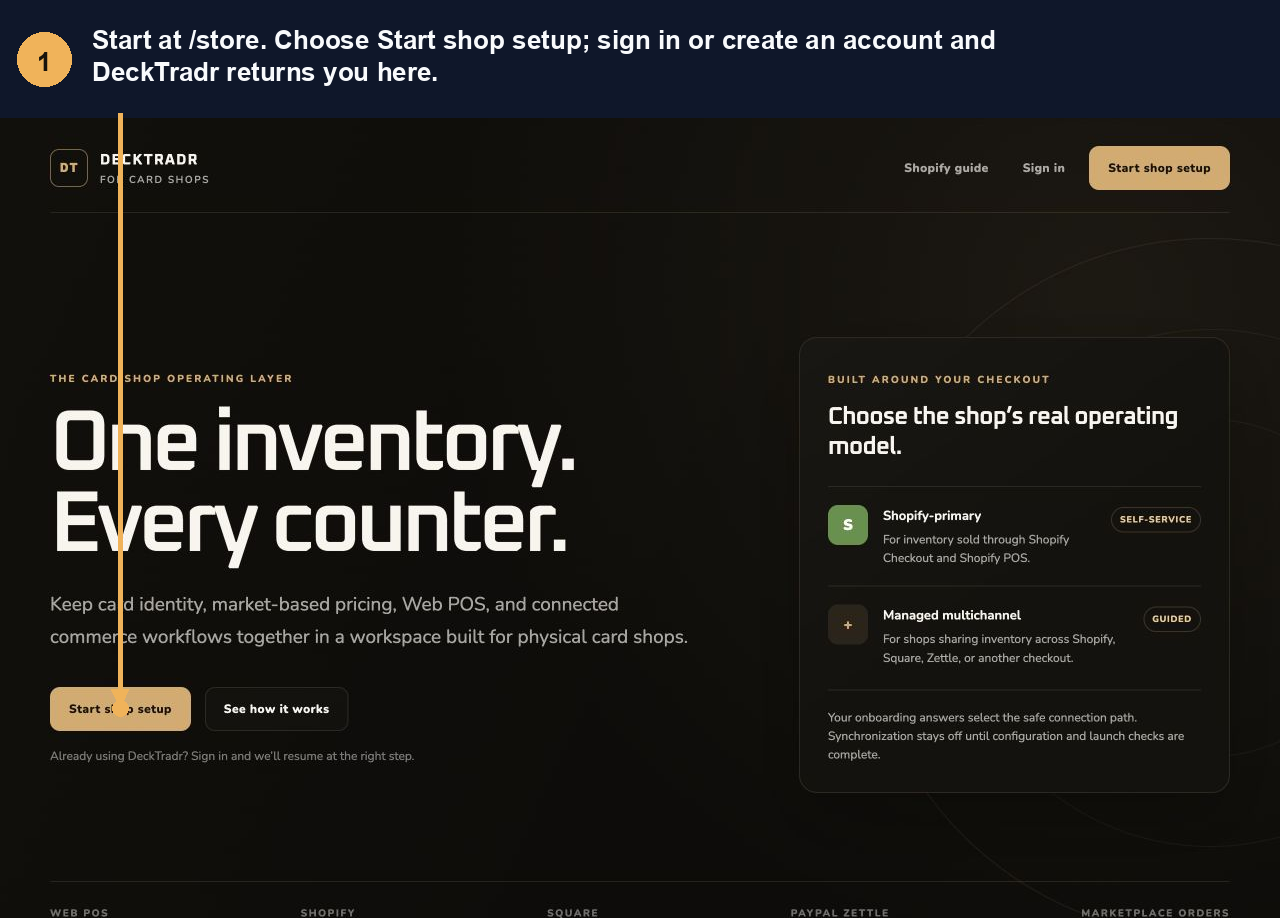
Annotated DeckTradr Card Shop workspace form
Numbered callouts identify the exact action. Screenshots contain safe example names rather than merchant credentials or customer data.
02

Confirm the shop contact

Shop name, primary contact, and email are required. Phone and website are optional.
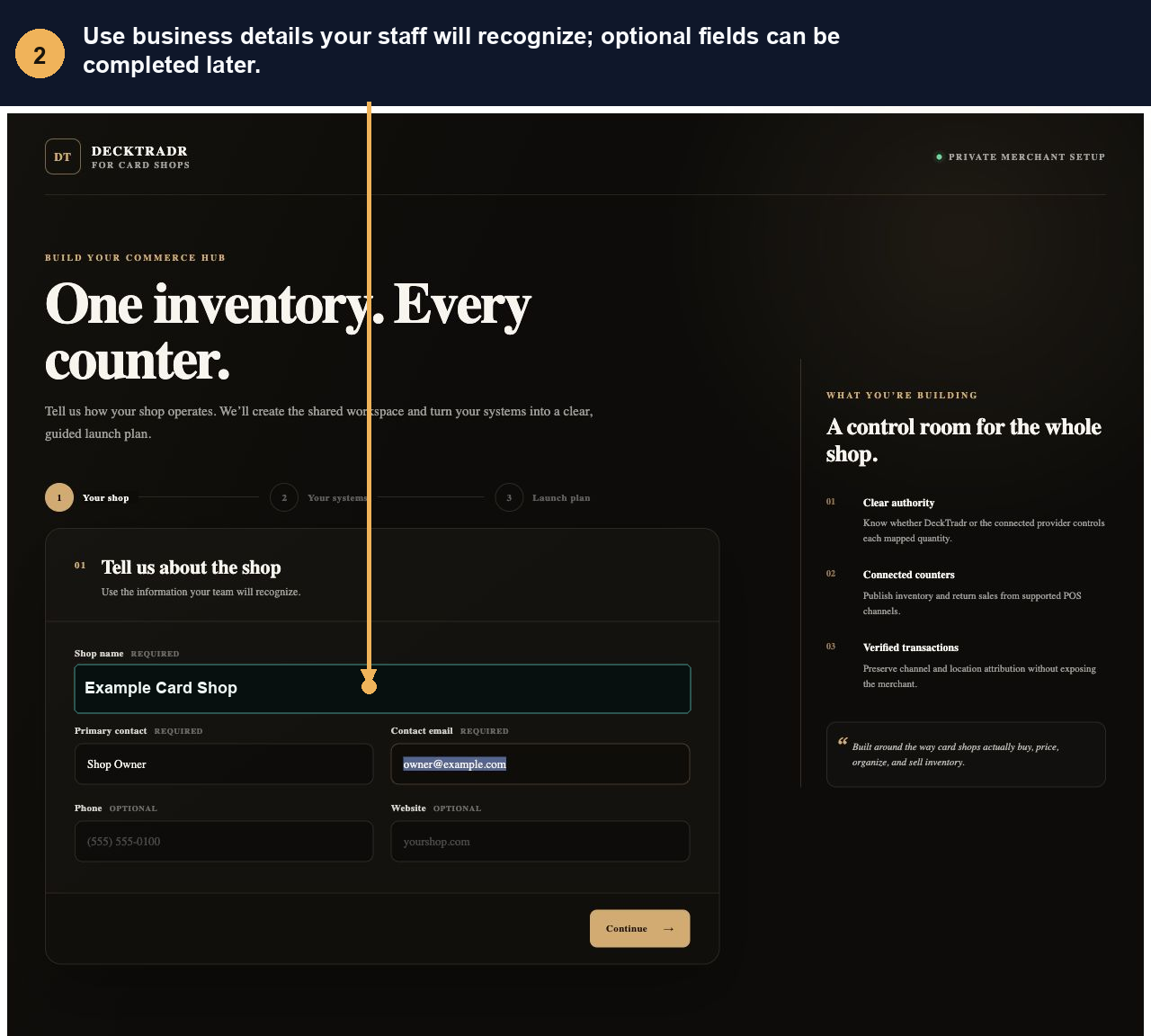
Annotated shop identity and contact form
Numbered callouts identify the exact action. Screenshots contain safe example names rather than merchant credentials or customer data.
03

Select every checkout the shop uses

Choose Shopify and every other POS that can sell these cards. DeckTradr Web POS is included automatically.
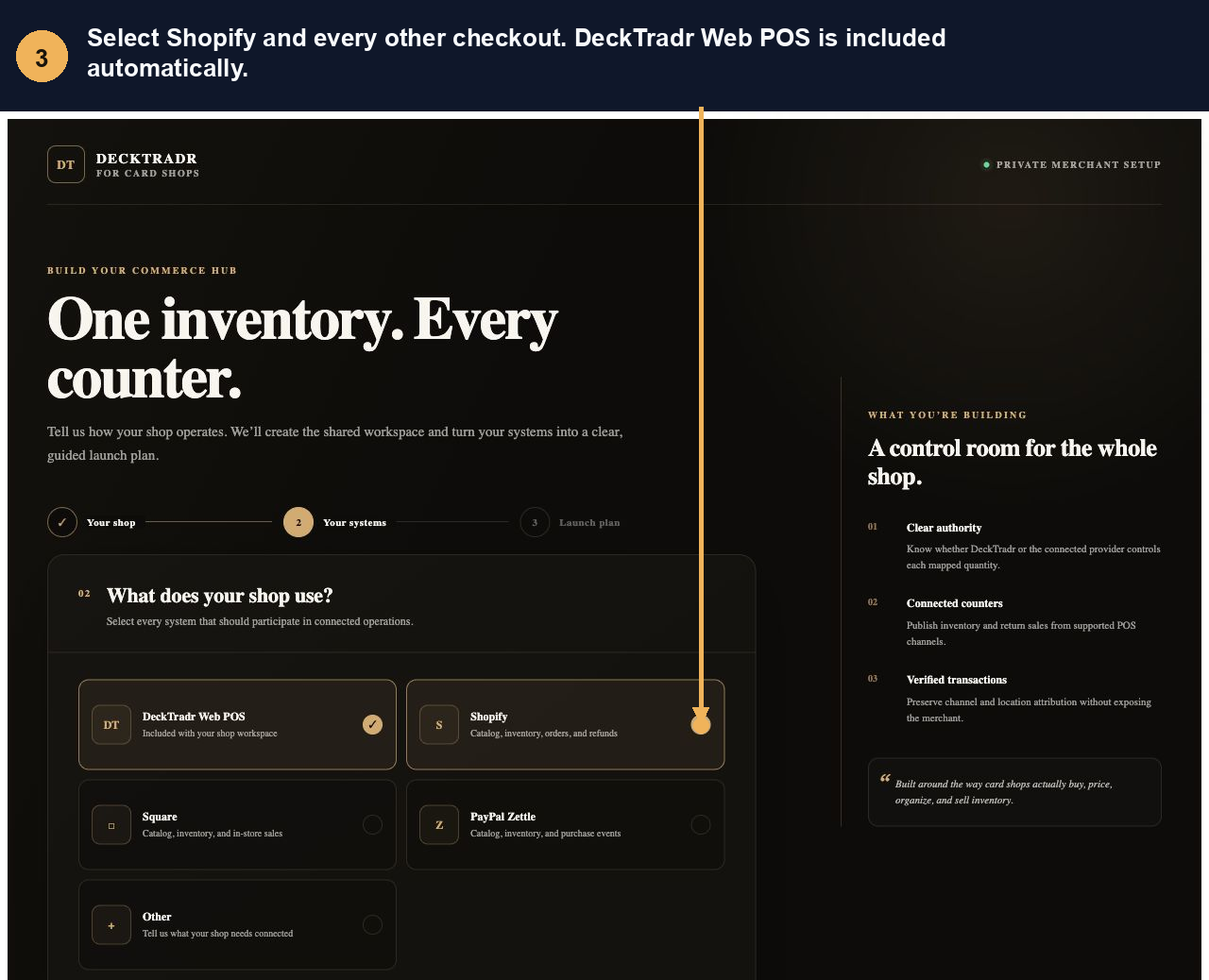
Annotated Card Shop system selection screen
Numbered callouts identify the exact action. Screenshots contain safe example names rather than merchant credentials or customer data.
04

Choose the quantity authority

Shopify-primary is for Shopify Checkout and Shopify POS only. If another checkout shares the same inventory, choose managed multichannel.
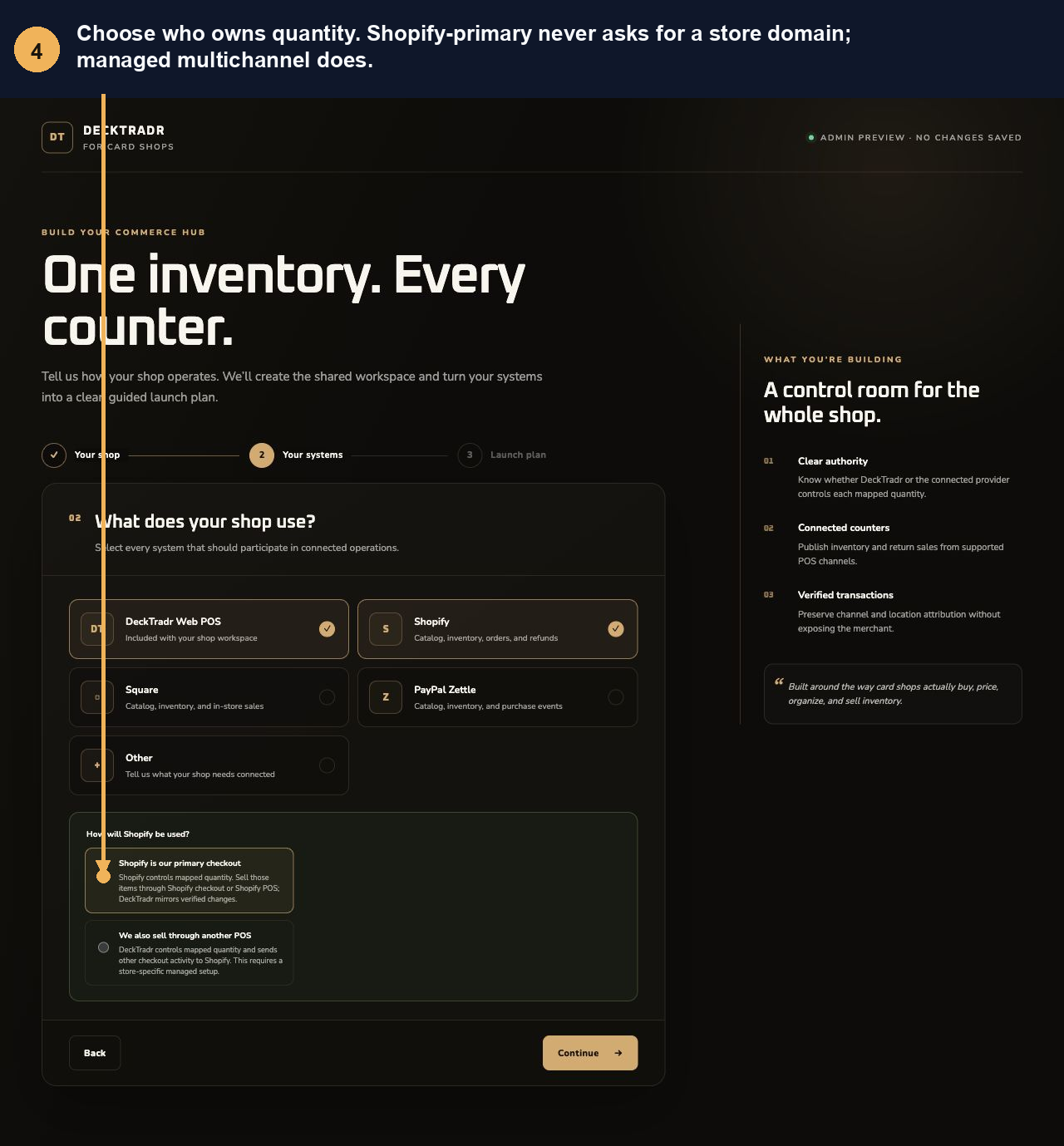
Annotated Shopify operating mode choices
Numbered callouts identify the exact action. Screenshots contain safe example names rather than merchant credentials or customer data.
05

Review the safe-off launch plan

Creating the workspace does not start synchronization. Review the selected systems and authority boundary before continuing.
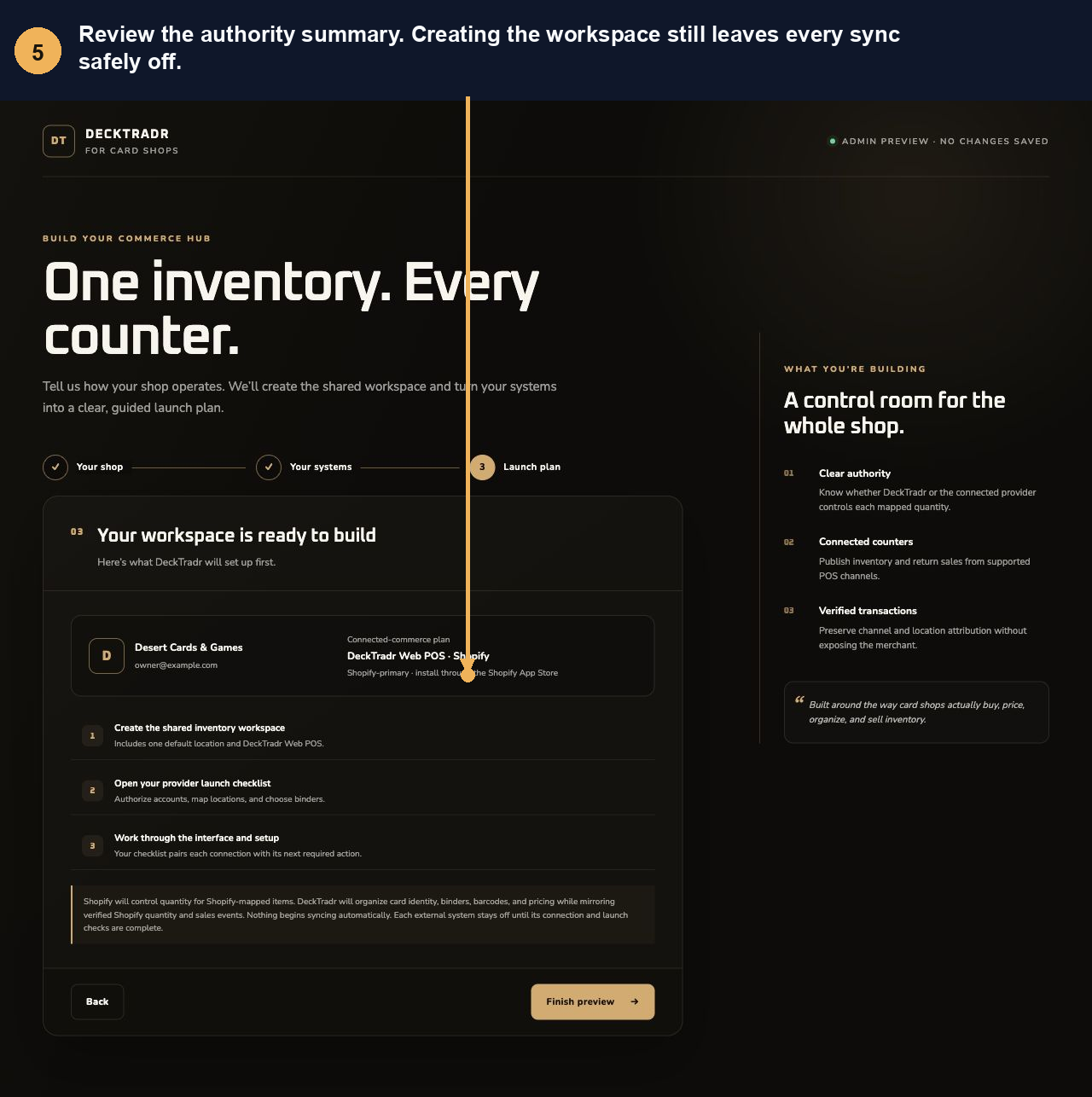
Annotated Card Shop launch plan review
Numbered callouts identify the exact action. Screenshots contain safe example names rather than merchant credentials or customer data.
06

Open the exact Shopify installation

Use the Install Shopify app action in Card Shop settings. Managed requests refresh automatically while DeckTradr prepares the exact store-bound link; never reuse another merchant’s installation.
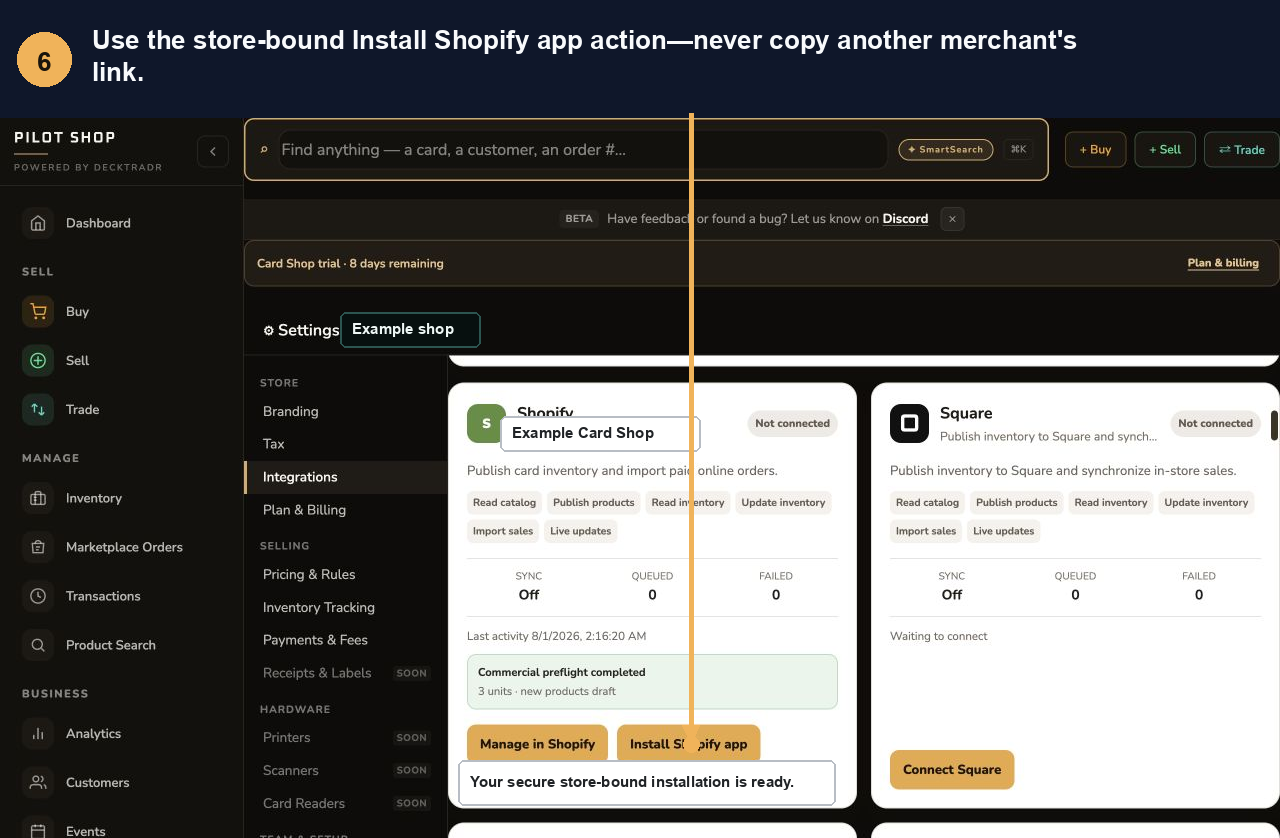
Annotated DeckTradr Shopify installation action
Numbered callouts identify the exact action. Screenshots contain safe example names rather than merchant credentials or customer data.
07

Approve the app in the correct store

Verify the Shopify store name, review the listed permissions, and select Install. Never paste an app secret or Admin API token into DeckTradr.
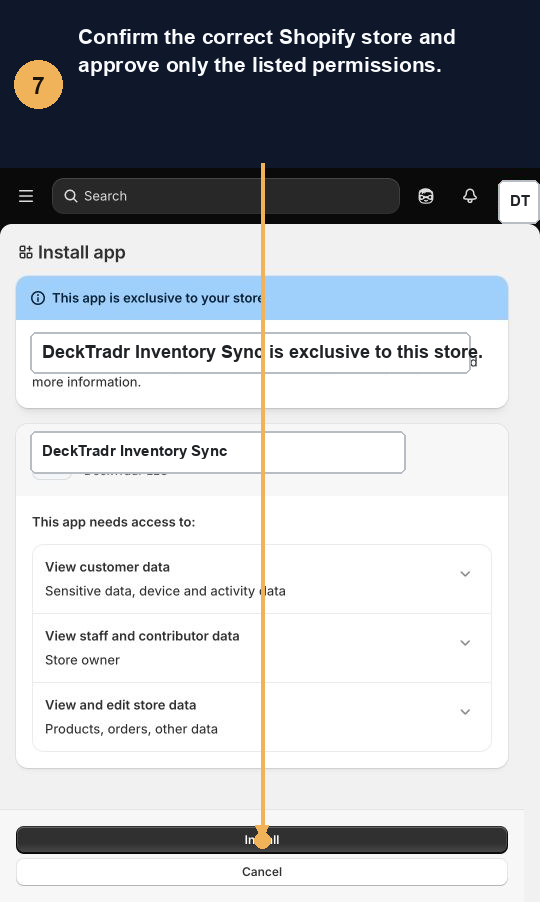
Annotated Shopify app approval screen
Numbered callouts identify the exact action. Screenshots contain safe example names rather than merchant credentials or customer data.
08

Choose the DeckTradr inventory owner

Select the available DeckTradr inventory workspace that owns the cards. Nothing synchronizes during this consent step.
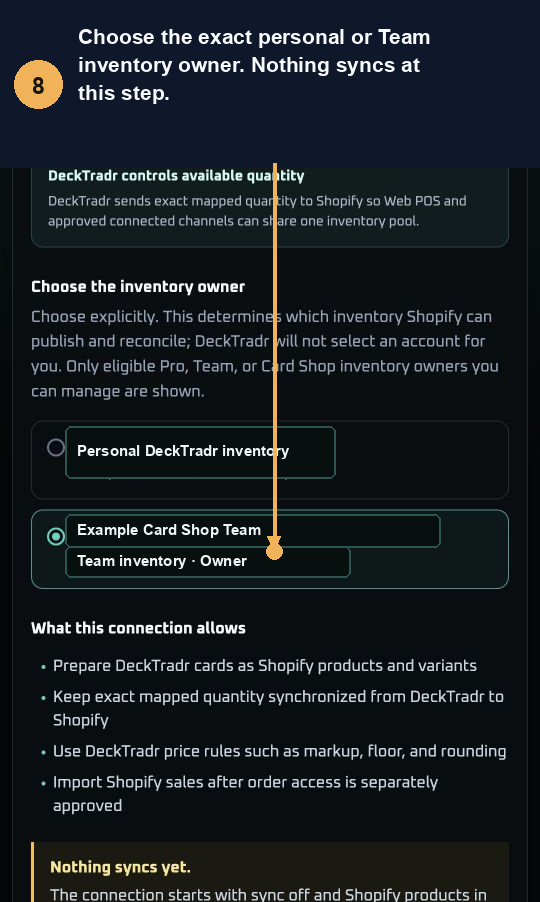
Annotated DeckTradr inventory owner consent screen
Numbered callouts identify the exact action. Screenshots contain safe example names rather than merchant credentials or customer data.
09

Choose locations and inventory sources

Select the Shopify stock location, then All inventory or the exact DeckTradr binders to publish.
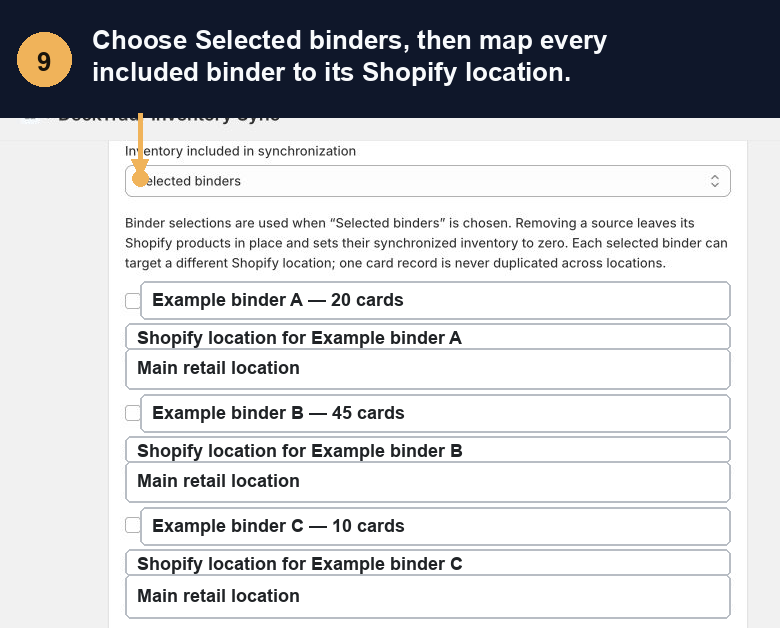
Annotated Shopify location and DeckTradr binder selection
Numbered callouts identify the exact action. Screenshots contain safe example names rather than merchant credentials or customer data.
10

Set automatic pricing and publication

Choose the market adjustment, rounding, floor, and product state. Draft is safest for the first controlled test.
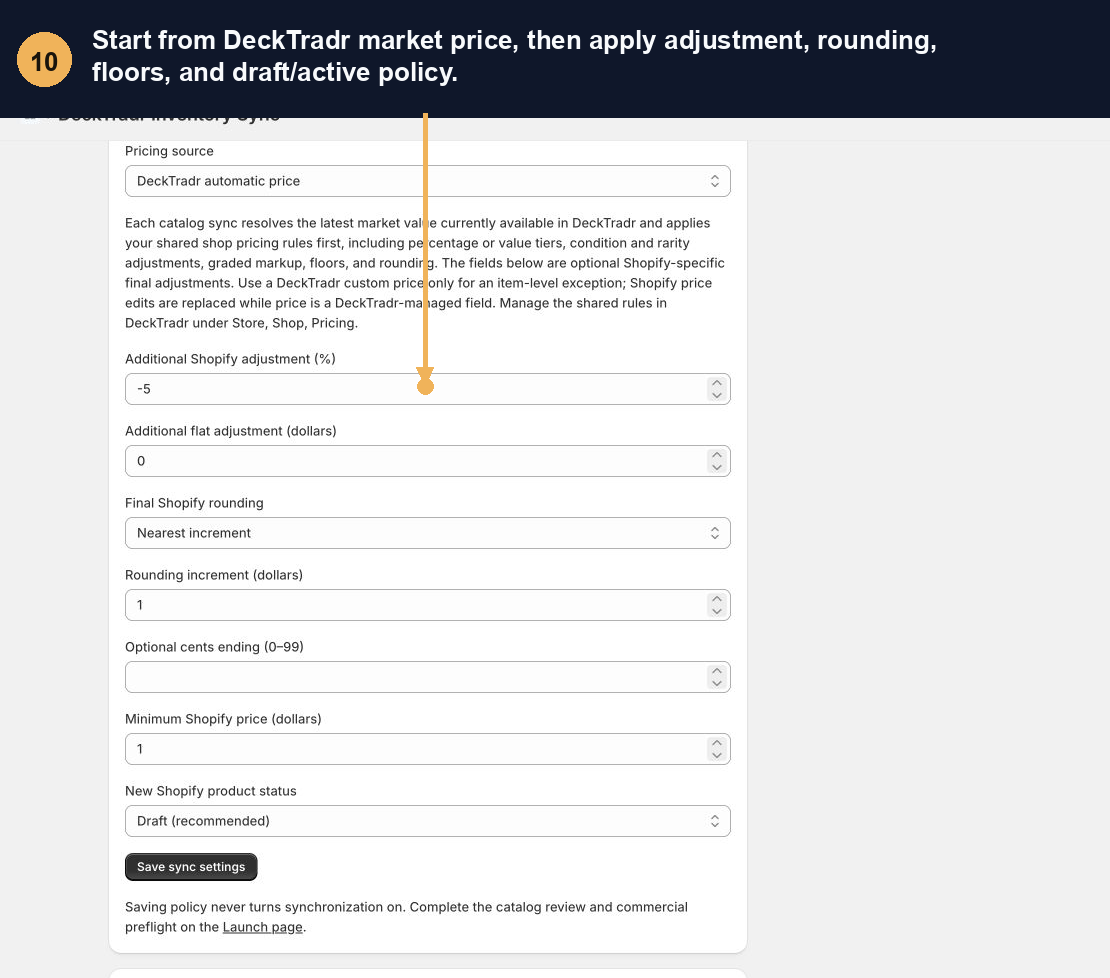
Annotated automatic pricing and Shopify publication settings
Numbered callouts identify the exact action. Screenshots contain safe example names rather than merchant credentials or customer data.
11

Resolve every launch check

The launch page verifies scopes, locations, sources, pricing, queue health, worker health, and explicit merchant confirmation.
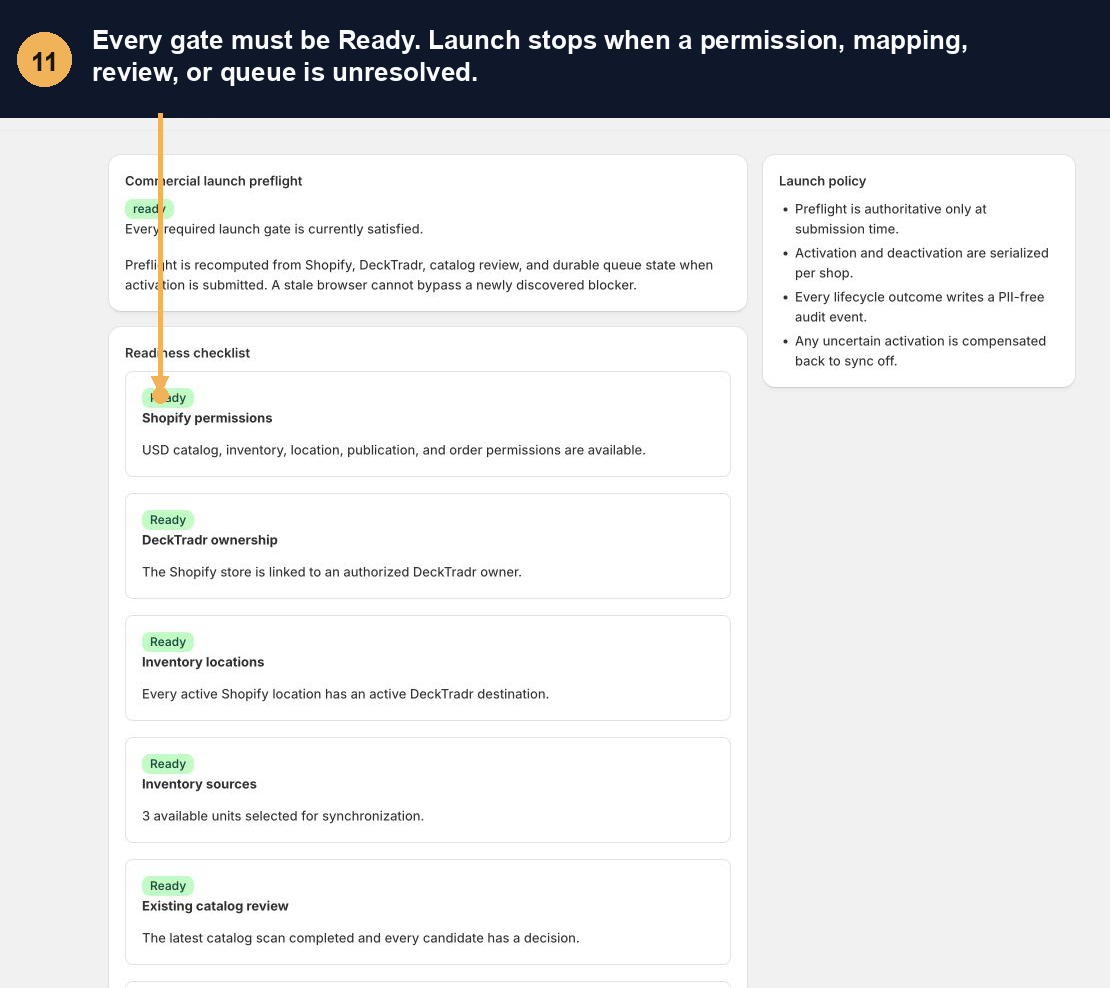
Annotated Shopify synchronization launch preflight
Numbered callouts identify the exact action. Screenshots contain safe example names rather than merchant credentials or customer data.
12

Activate the controlled first cycle

A server-recomputed preflight must pass before synchronization can turn on. Start with one small test binder.
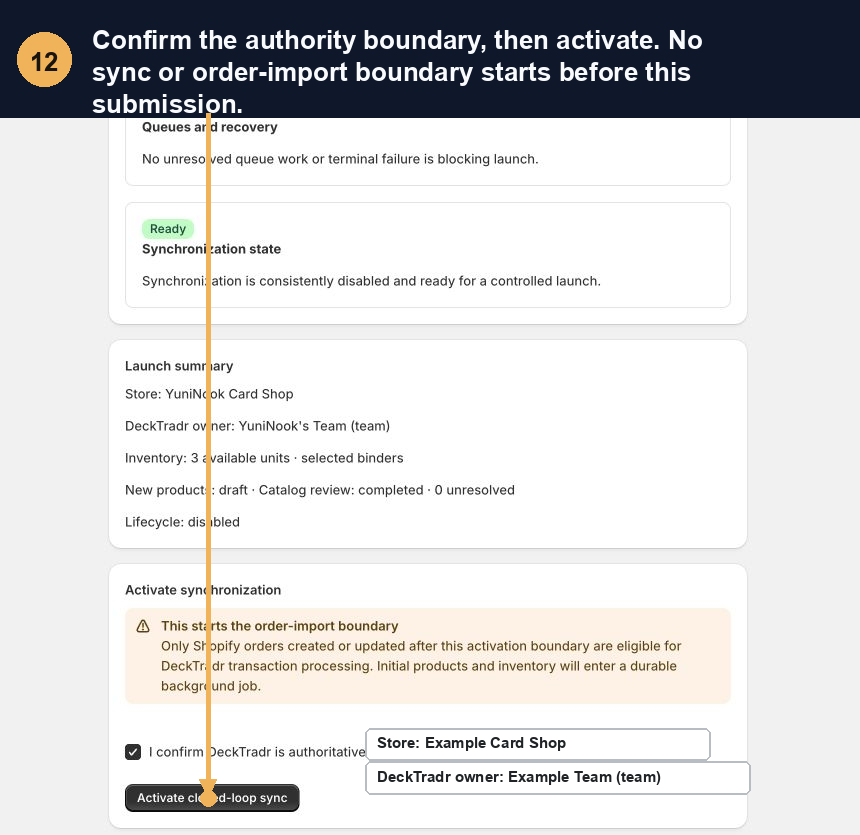
Annotated Shopify synchronization activation screen
Numbered callouts identify the exact action. Screenshots contain safe example names rather than merchant credentials or customer data.
13

Confirm the first healthy cycle

Wait for zero queued work, zero unresolved failures, and a recent healthy worker before publishing more inventory.
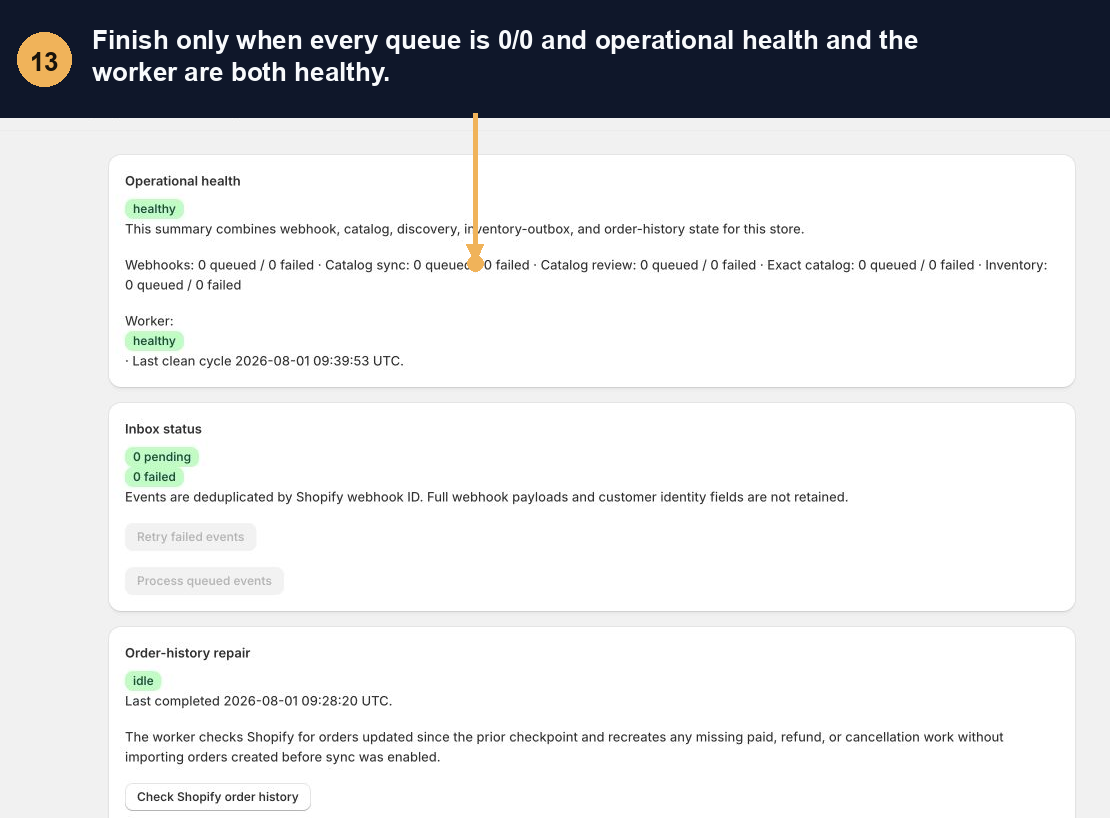
Annotated healthy Shopify integration activity screen
Numbered callouts identify the exact action. Screenshots contain safe example names rather than merchant credentials or customer data.
14

Publish and scan one DeckTradr barcode

Confirm the exact variant barcode and Shopify POS location. Draft products must be published before Shopify POS can sell them.
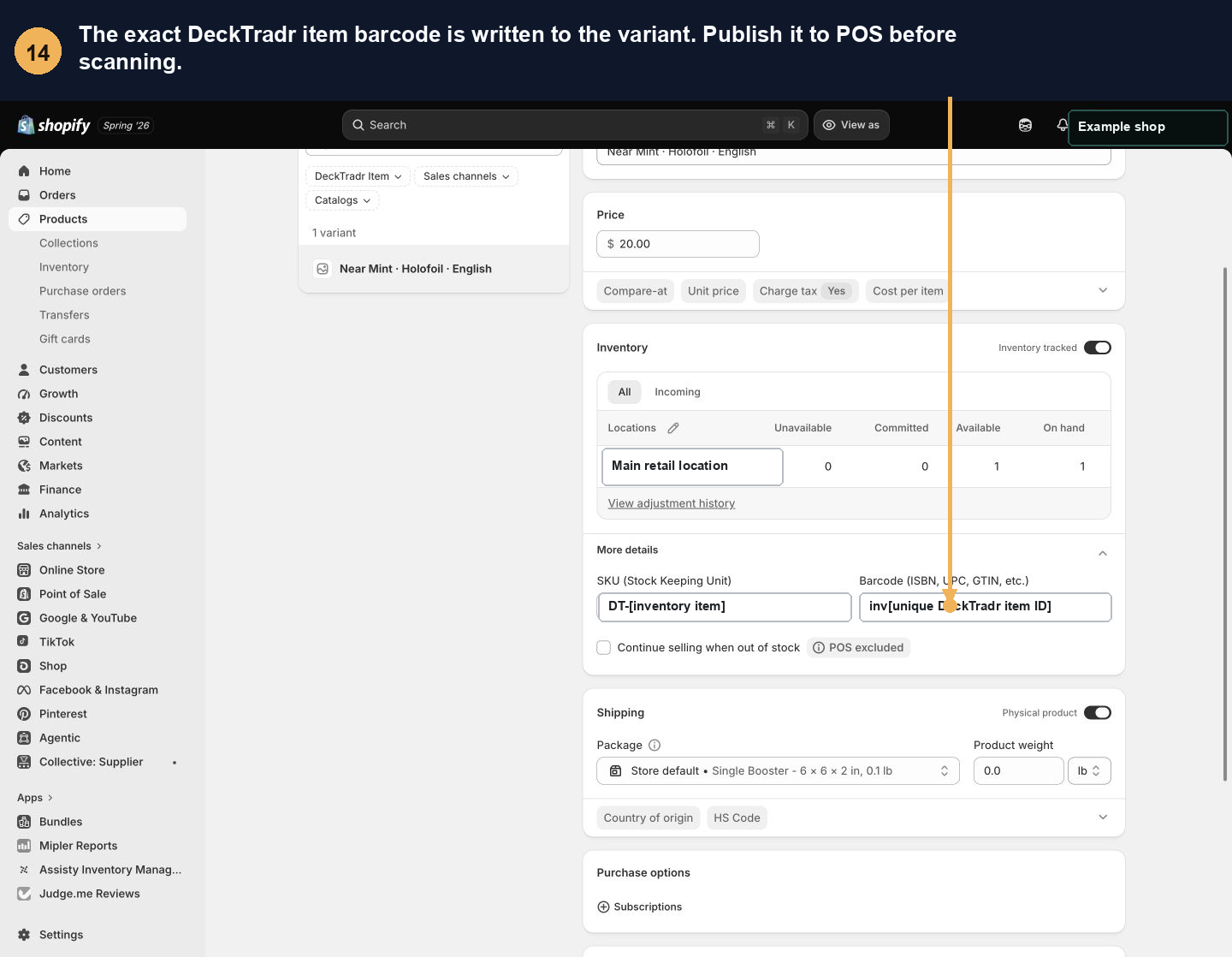
Annotated Shopify variant with a DeckTradr barcode
Numbered callouts identify the exact action. Screenshots contain safe example names rather than merchant credentials or customer data.
15

Verify the sale, pull alert, and refund

Complete one test sale and confirm one inventory result, one verified LGS Sale, and one Marketplace Orders pull alert. Then cancel and refund with restocking; confirm quantity returns and the same barcode scans again.
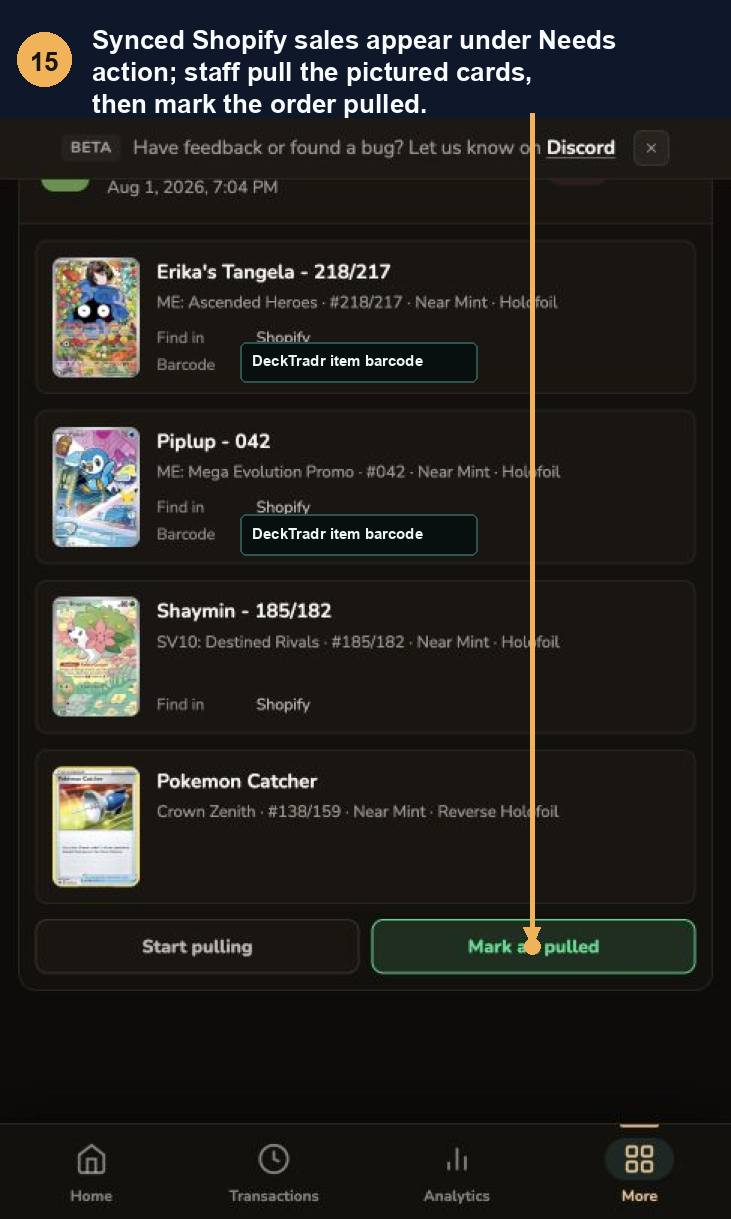
Annotated DeckTradr Marketplace Orders pull workflow
Numbered callouts identify the exact action. Screenshots contain safe example names rather than merchant credentials or customer data.
16

Know how to stop safely

Pause before investigating. Disconnect in DeckTradr before changing stores or authority mode; uninstall in Shopify only when performing a clean reinstall.
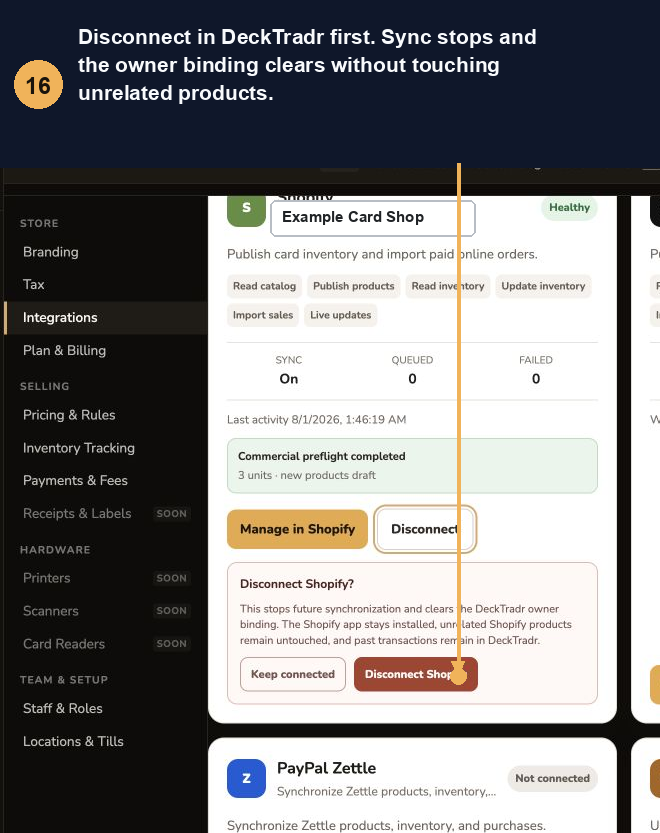
Annotated safe Shopify disconnect control
Numbered callouts identify the exact action. Screenshots contain safe example names rather than merchant credentials or customer data.
DAILY OPERATION

Only mapped DeckTradr products are managed.

Adding, moving, repricing, selling, or refunding a mapped card queues work for that exact inventory identity. Unrelated Shopify products stay outside DeckTradr.

  • Move a card between synchronized binders without creating a duplicate.
  • Move it outside every synchronized source to exclude its durable mapping.
  • Let market changes update only mapped cards whose effective price changed.
  • Use Marketplace Orders to find and pull cards sold online.
QUICK CHECKS

If something does not look right

Barcode is not recognized

Publish the product to Shopify POS, confirm the exact variant barcode, and stock it at the selected POS location.

Shopify POS says out of stock

Confirm inventory tracking and the Shopify location selected during setup.

A new binder is missing

Add at least one inventory item, refresh the app, select the binder, and save.

Sync is not enabled

Open Launch and resolve every item marked Needed before activation.

A refunded card will not scan

Confirm the refund restocked the exact Shopify location, the mapped variant is still published to Shopify POS, and its DeckTradr barcode is unchanged.

Activity needs attention

Keep sync paused, retry the exact failed work, or download the redacted support bundle.

NEED A HAND?

Keep synchronization paused and bring the support bundle.

The bundle contains redacted health and queue information—never access tokens, customer details, or raw webhook bodies.

Contact support